
How to Make a Gas Station Dance AI Video (with Screenshots)
Make a gas station dance AI video from three photos, with a screenshot of every step: upload, quality and format, generating, downloading and posting.
Updated Oct 10, 2026
You do not need a camera, a car or a dance routine to make a gas station dance video. You need three photos, a few minutes and the Gas Station Dance AI Generator on gasstationdance.app. This guide walks through every screen, from the empty upload slots to the finished MP4, with a screenshot of each step. We took them on the site itself, using three portraits of AI-made people.
What you get, at a glance
| Details | |
|---|---|
| Result | A 15-second MP4 in the three-shot format |
| Photos | Three, one per shot, or one photo used for all three |
| Time | Usually 5 to 8 minutes of rendering |
| Cost | 100 credits for 720P Standard, 150 credits for 1080P Pro |
| Formats | 9:16, 16:9 or 1:1 |
| Device | Any browser, on a phone or a computer |
The video copies the trend shot for shot: a freestyle dance on an empty lot at dusk, a handheld selfie with a gas station behind, and a one-take step out of a parked car. Your people replace the ones in the original. If you have not seen the trend yet, watch a few in our gas station dance video collection first.
Step 1: Open the generator
Go to gasstationdance.app and tap Create my video, or scroll down to Make your gas station dance video. This is the whole tool: three photo slots on the left, one per shot, and the settings on the right.
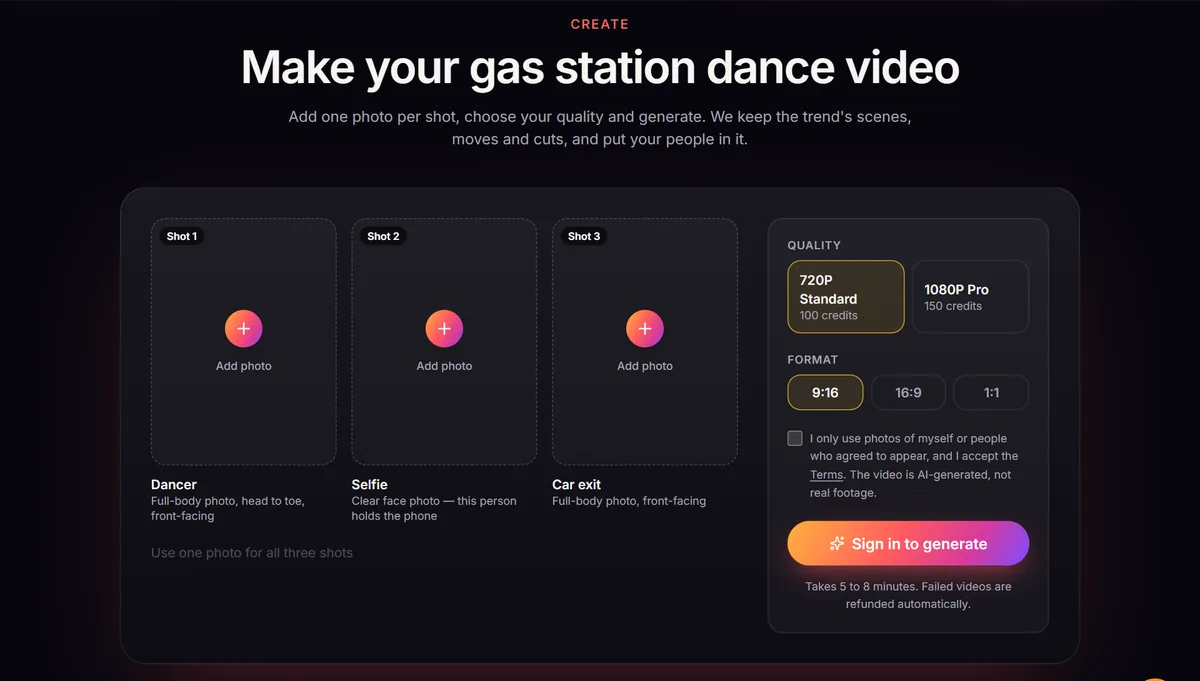
Every slot says what kind of photo it wants. You can look around, pick settings and read the hints without an account; the button only asks you to sign in when you are ready to generate.
Step 2: Sign in
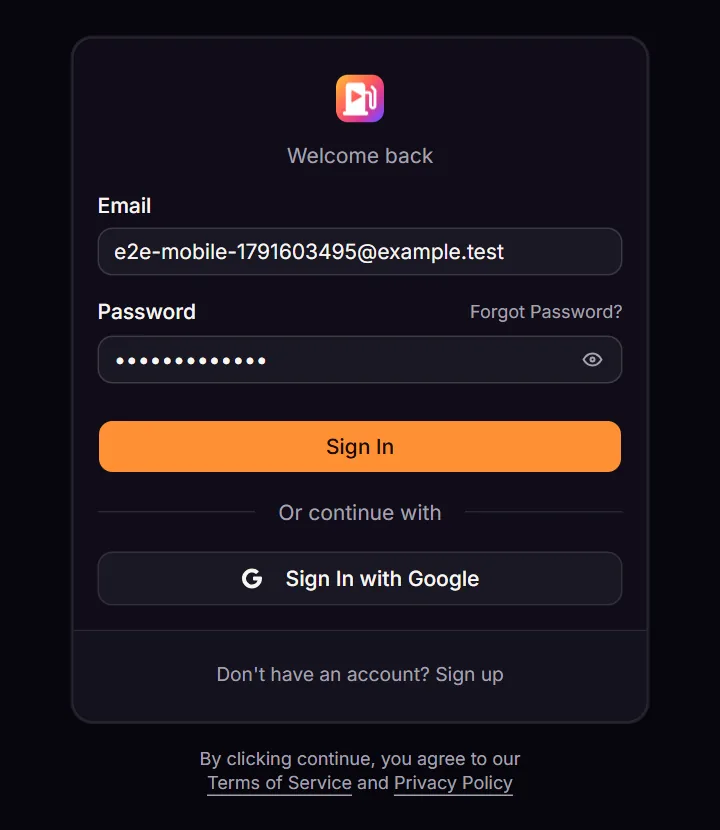
Tap Sign in to generate. You can continue with Google, or create an account with your email and a password. New email accounts get a confirmation link first. After signing in you land back on the generator, so you do not have to find your way again.
Step 3: Get credits
Videos are paid with credits. There is no free generation and no subscription: you buy a pack once and use it whenever you want. Open Pricing (or tap Buy credits in the generator) and pick a pack.
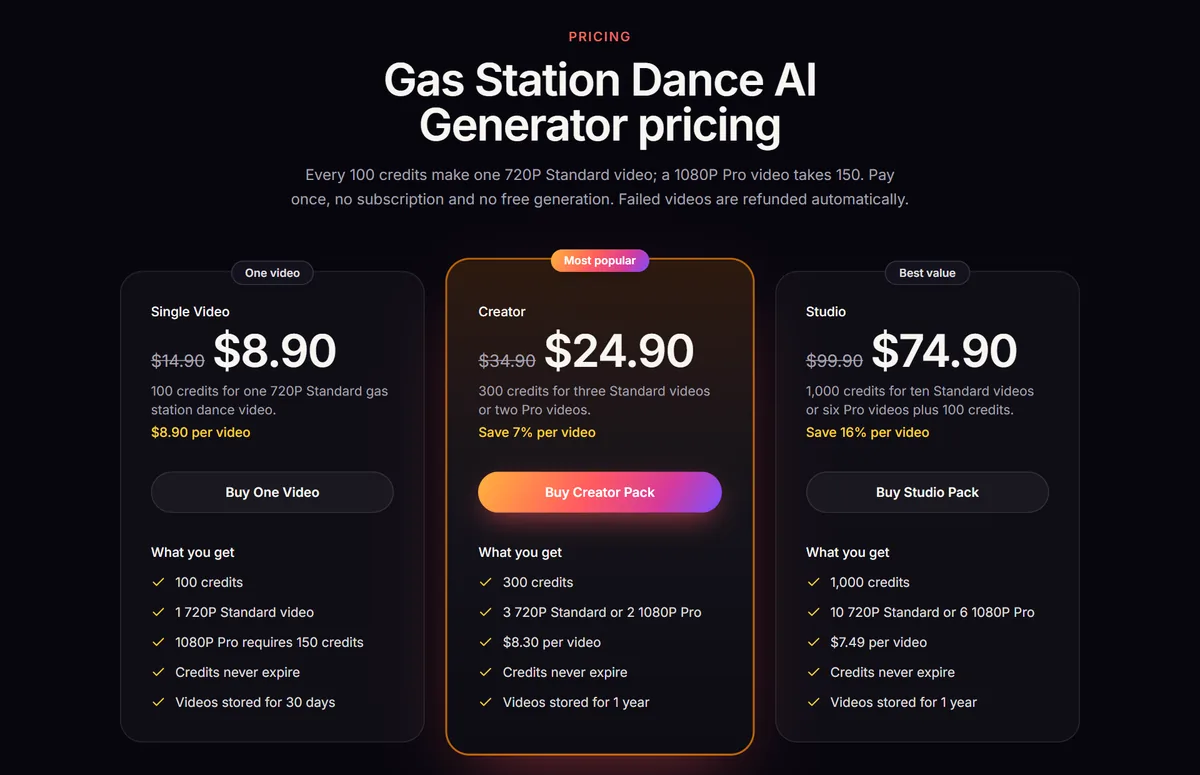
| Pack | Price | Credits | Enough for | Videos stored |
|---|---|---|---|---|
| Single Video | $8.90 | 100 | 1 Standard video | 30 days |
| Creator | $24.90 | 300 | 3 Standard or 2 Pro videos | 1 year |
| Studio | $74.90 | 1,000 | 10 Standard or 6 Pro videos | 1 year |
Payment goes through Stripe. When it is done you come straight back to the generator and your new balance shows above the generate button. If you only want to try the trend once, the Single Video pack is enough for one 720P video.
Step 4: Add your three photos
Tap a slot and choose a photo from your phone or computer (JPG, PNG or WebP, up to 8 MB). Each slot drives one shot of the video:
- Shot 1, Dancer: a full-body photo, head to toe, facing the camera. This person does the dance on the empty lot.
- Shot 2, Selfie: a clear photo of the face. This person holds the phone in the selfie at the gas station.
- Shot 3, Car exit: another full-body photo, facing the camera. This person steps out of the car.
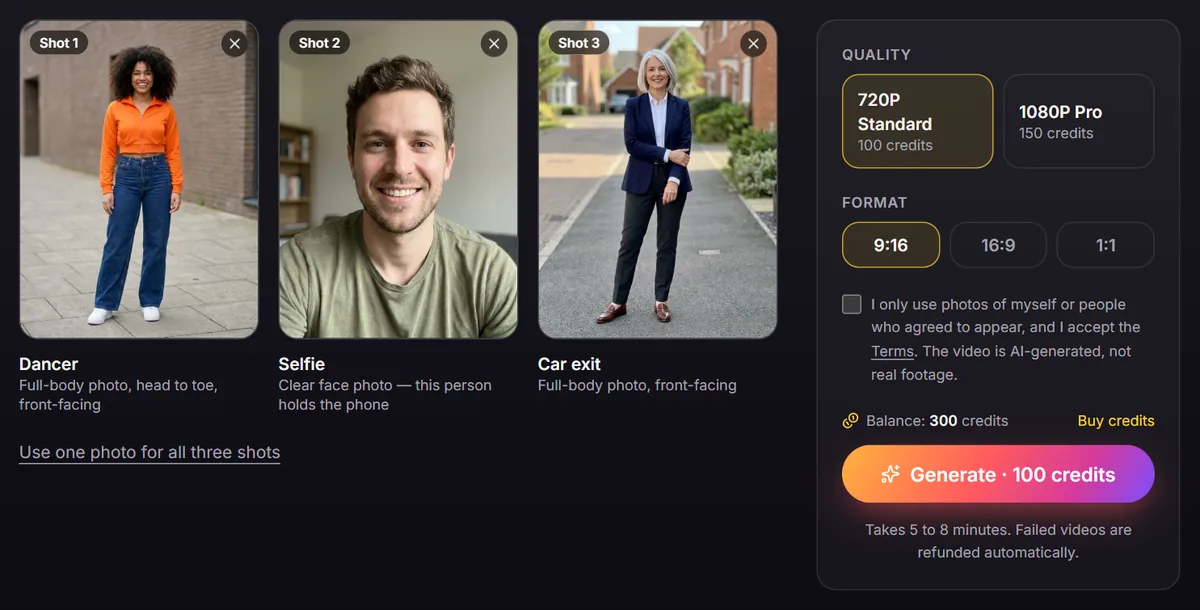
Want to be in every shot yourself? Upload one good full-body photo and tap Use one photo for all three shots. It copies the first photo you added into all three slots.
Step 5: Choose quality and format
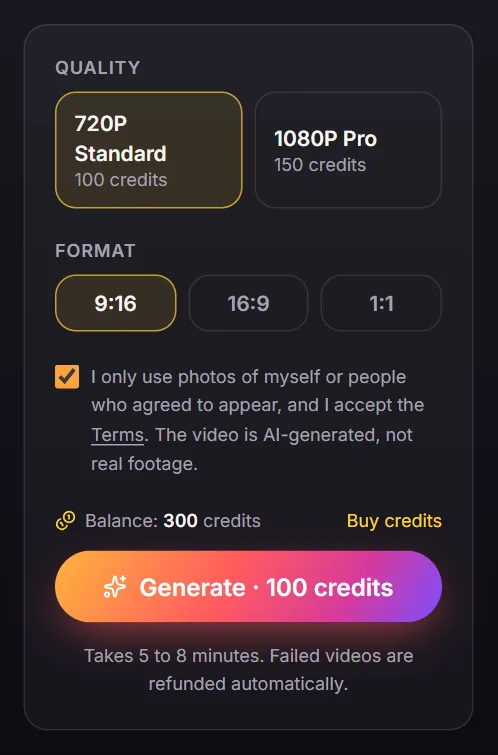
Quality. 720P Standard (100 credits) looks good on a phone screen and is what most people post. 1080P Pro (150 credits) is sharper and holds up better on a big screen.
Format. Pick it for where you will post:
- 9:16 for TikTok, Instagram Reels and YouTube Shorts. This is the one to choose for the trend.
- 16:9 for YouTube and other widescreen players.
- 1:1 for square feed posts.
Consent. Tick the box to confirm that you only use photos of yourself or of people who agreed to appear, and that you accept the Terms. The result is an AI-generated video, not real footage, so do not put someone in it without asking.
Step 6: Generate and wait
Tap Generate. Your photos upload, the credits for the video are taken from your balance, and a progress card appears under the generator with a timer.

Rendering usually takes 5 to 8 minutes. You do not have to watch it: close the tab, lock your phone, and come back later. The video waits for you in My videos. If a render fails, your credits go back to your balance automatically and you can try again, ideally with a clearer photo.
Step 7: Watch and download
When it finishes, the card turns into a player with your video. Watch it through, then tap Download MP4 to save the 15-second clip to your phone or computer.
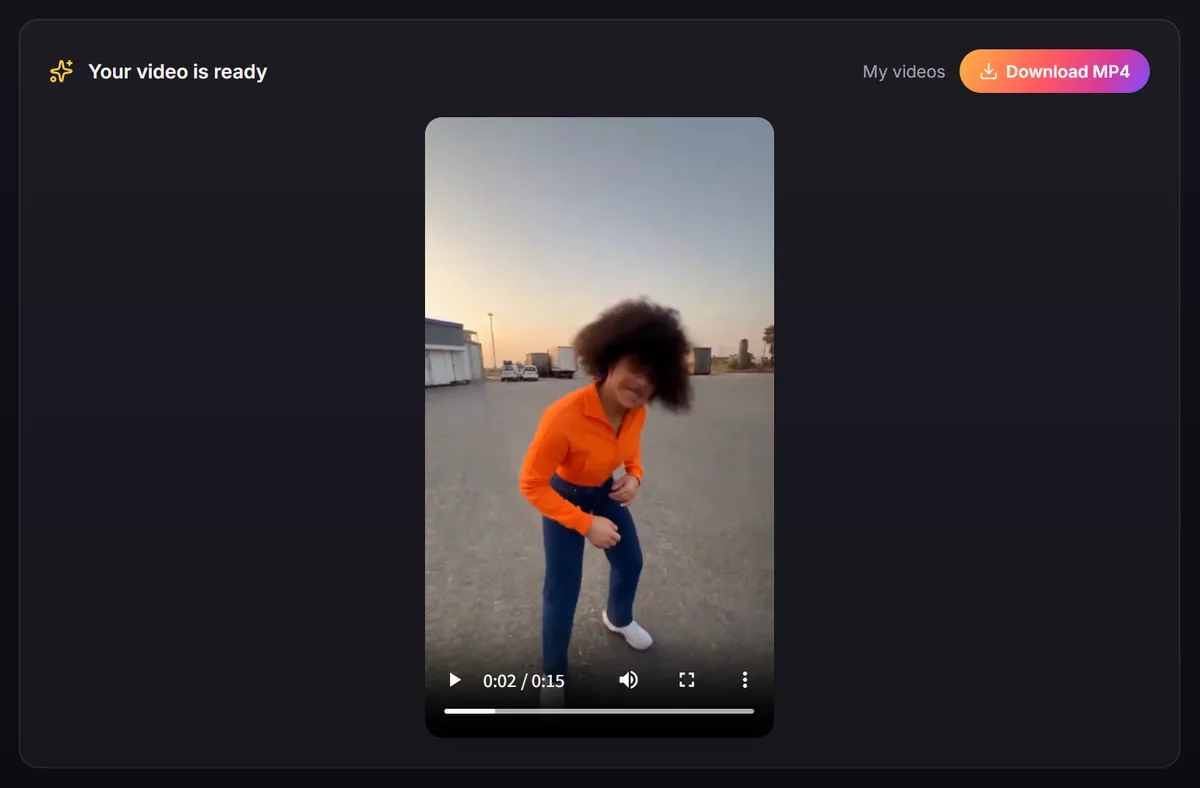
Not happy with a shot? The usual fix is a better photo for that slot. Swap it and generate again. Each try is a new video and costs credits again, so check your photos before you tap Generate.
Step 8: Find it again in My videos
Every video you make is listed in My videos, with its date, quality and a download link. It is a good place to grab a video on another device: sign in there and download it.
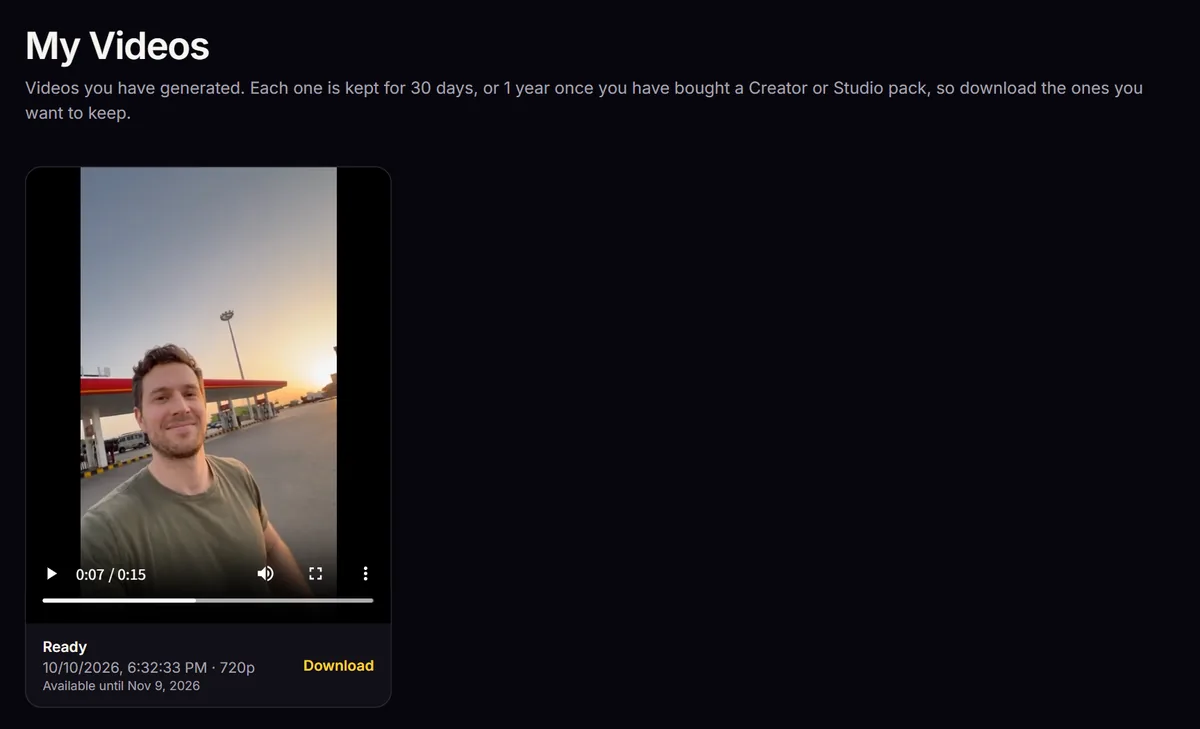
Videos are kept for 30 days, or for 1 year once you have bought a Creator or Studio pack. After that they are no longer available, so download the ones you want to keep.
Step 9: Post it
- Upload the MP4 to TikTok, Reels or Shorts as a new video. The clip is already the right length and, in 9:16, the right shape.
- Add the trend sound. The cuts land where the original's do, so the beat lines up. Our gas station dance song guide shows how to find it.
- Turn on the platform's AI-generated label. It is AI video, and saying so keeps you within the platform rules.
- Write a short caption that says who is in it, and add a few tags like #gasstationdance.
The full posting checklist, with captions and hashtags, is in how to post the gas station dance on TikTok.
Troubleshooting
- "You need 100 credits for a 720p video": your balance is too low for the quality you picked. Tap Buy credits, or switch from 1080P Pro to 720P Standard if you have 100 to 149 credits.
- "Photos must be JPG, PNG or WebP" or "under 8 MB": save the photo as a JPG, or take a screenshot of it, and upload that.
- "Too small" or "too narrow or too wide": photos need at least 300 px on each side and a normal portrait shape. Use the original photo rather than a thumbnail, and crop panoramas closer to the person.
- The face does not look like the person: the photo is usually the cause. Use a sharper, front-facing photo with even light and no filter.
- The render failed: the credits are already back in your balance. Try again; if it fails twice, change the photo.
- I closed the page: nothing is lost. Open My videos while signed in.
FAQ
Can I make one without buying credits? No. Each video costs real rendering time, so there is no free generation. The smallest pack is $8.90 for one 720P video, and your credits never expire.
Does it work on a phone? Yes. Everything above works in the mobile browser, there is no app to install, and you can upload straight from your camera roll.
Can I use a photo of a friend or a celebrity? Only of people who agreed to be in the video. Do not use photos of celebrities or anyone who has not said yes.
Would I rather film it myself? If you have a car, two friends and a sunset, filming can be fun. Read the shot-by-shot tutorial or our AI vs filming comparison. To understand where the format comes from, read how the gas station dance trend started.
Make your gas station dance video
Three photos in, a 15-second clip out. No filming, no car, no crew.
Open the generator